NS - Knowledgebase
Find the answers you need. More articles every week.
| ID | Title | Module | Category |
|---|---|---|---|
| 12 |
What are my support options? NaturaeSoft Support ResourcesWhat are my support options? NaturaeSoft Support Resources
We hope this guide helps comfort you and directs you to the proper resources with our support services if you experience an issue with the service in the future. |
 |
|
| 11 |
What are the steps I should take when I have a support need? Support Escalation GuideWhat are the steps I should take when I have a support need? Support Escalation GuideNaturaeSoft Support Options and Escalation GuideAt NaturaeSoft, we offer multiple support channels to ensure your issues are resolved efficiently. This guide outlines our support process and the escalation procedure in case of emergencies or unresolved issues. 1. Knowledge Base (KB)Before contacting support, please review our Knowledge Base for known issues, FAQs, and common solutions experienced by our customers.
If you cannot find a solution in the KB, proceed to the next step. 2. Submitting a Support TicketIf the Knowledge Base does not address your issue, you can create a support ticket through the following methods: Via the Support Portal:
Via Email:If your email is registered with NaturaeSoft:
3. Live Chat SupportOur live support chat is available for real-time troubleshooting and immediate assistance.
4. Online Support MeetingsFor more complex issues, schedule an online support meeting with our technical team.
5. Emergency EscalationIf you experience a system-down emergency, please use the following escalation procedure:
6. Final Escalation ProcedureIf your issue remains unresolved after following the steps above, or you haven't received a response within 48 hours, you can escalate the case: Escalation Trigger:
Escalation Process:
Resolution Timeline:
We hope this updated guide helps you navigate our support services and provides clear escalation steps in case of emergencies or unresolved issues. |
|
|
| 9 |
How do access the OfficePro service?How do access the OfficePro service?To access your OfficePro account. Please log in under https://secure.naturaesoft.com. We also have an additional version of OfficePro available at https://OfficePro.NaturaeSoft.com Each of our services has multiple access points so that you and your staff can access several instances of our software within the same facility. Version 1: Secure
Version 2: OfficePro Beta Version: for testing of new features * The beta version is accessible to all customers, please let NaturaeSoft know of any issues you experience in the beta version of the service. We always work on new features and would appreciate your input and assistance. |
|
|
| 54 |
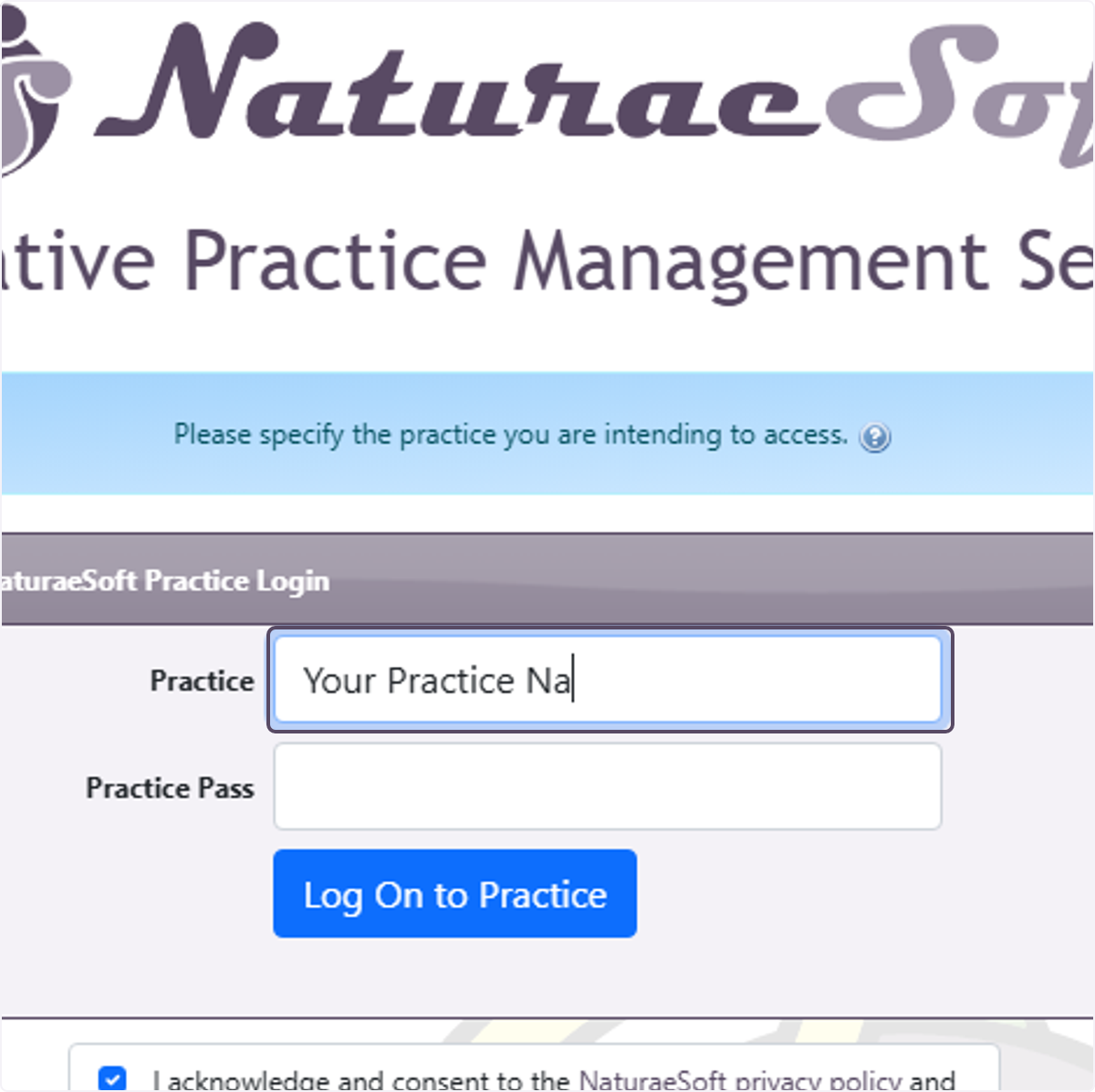
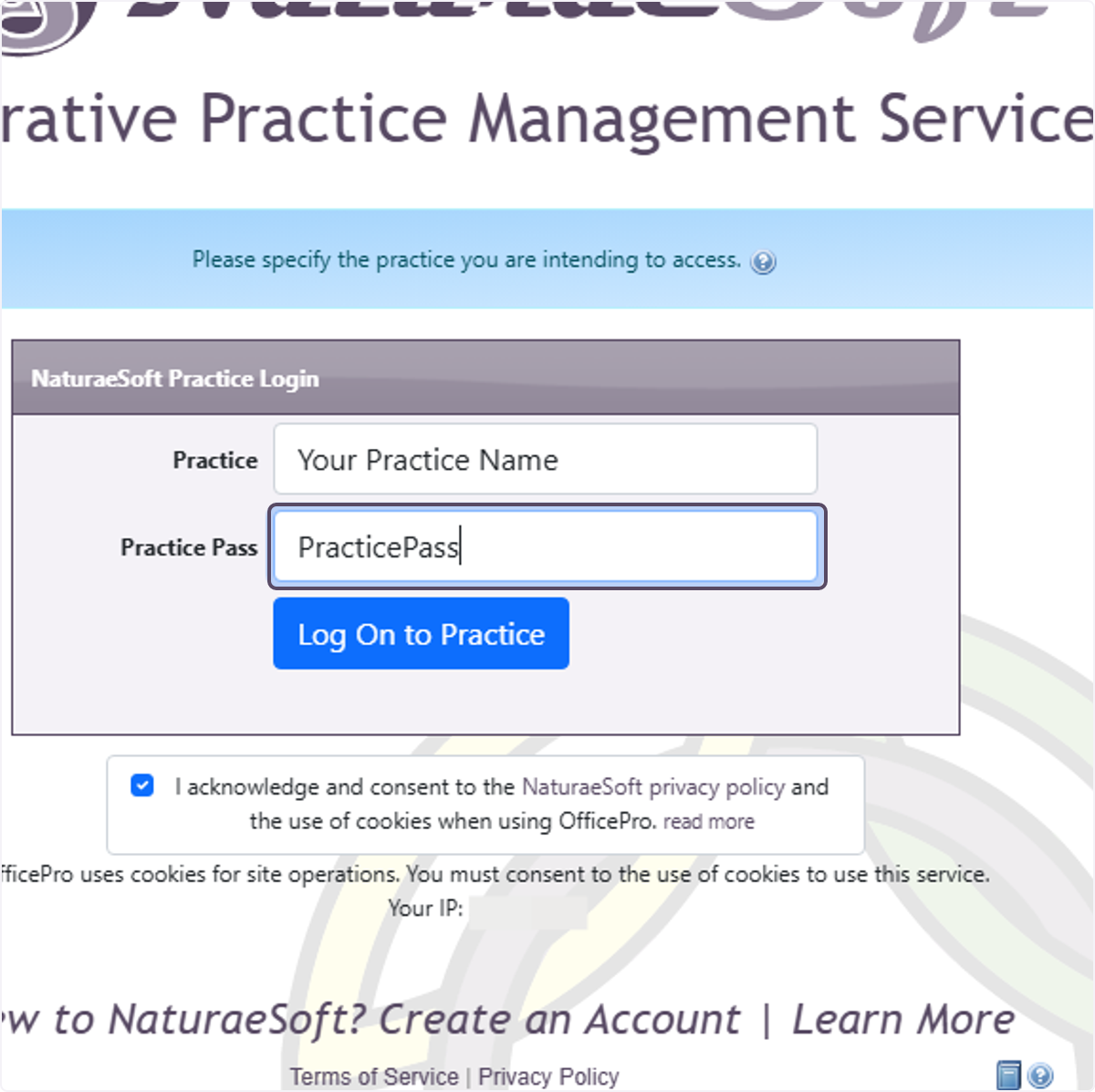
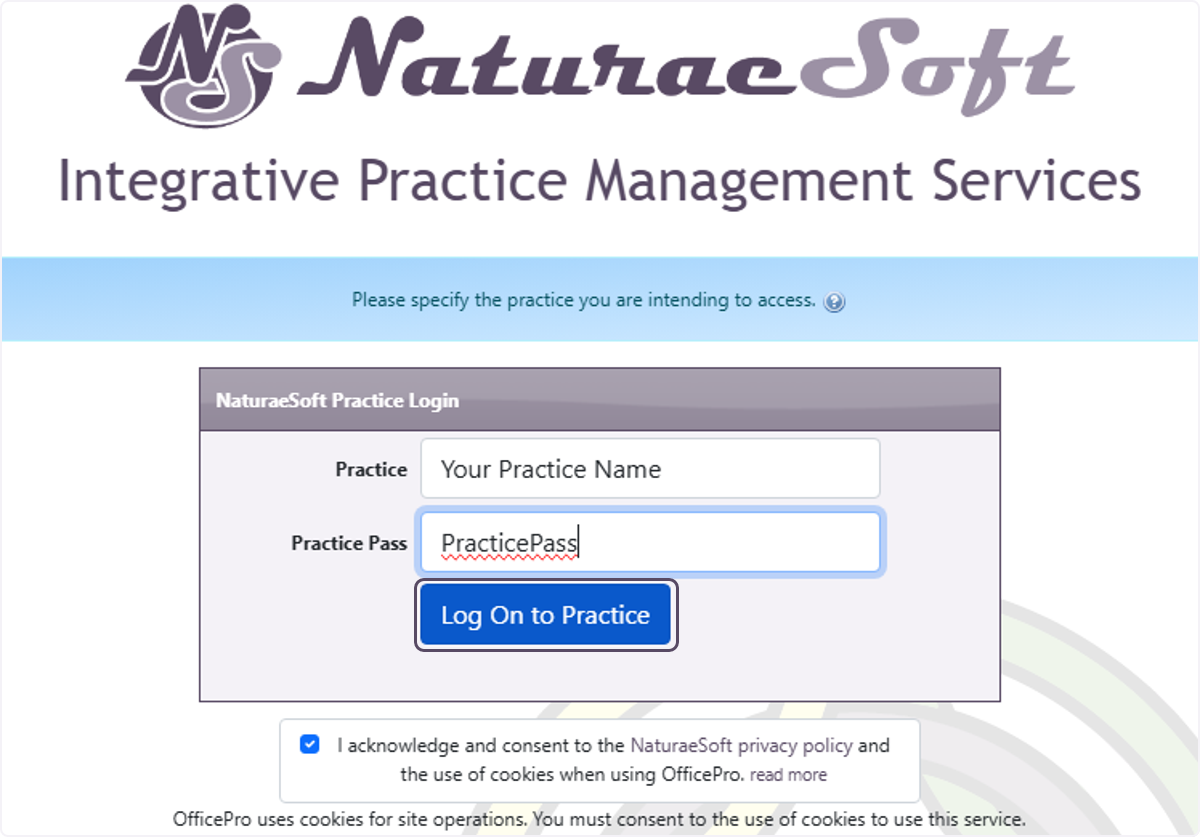
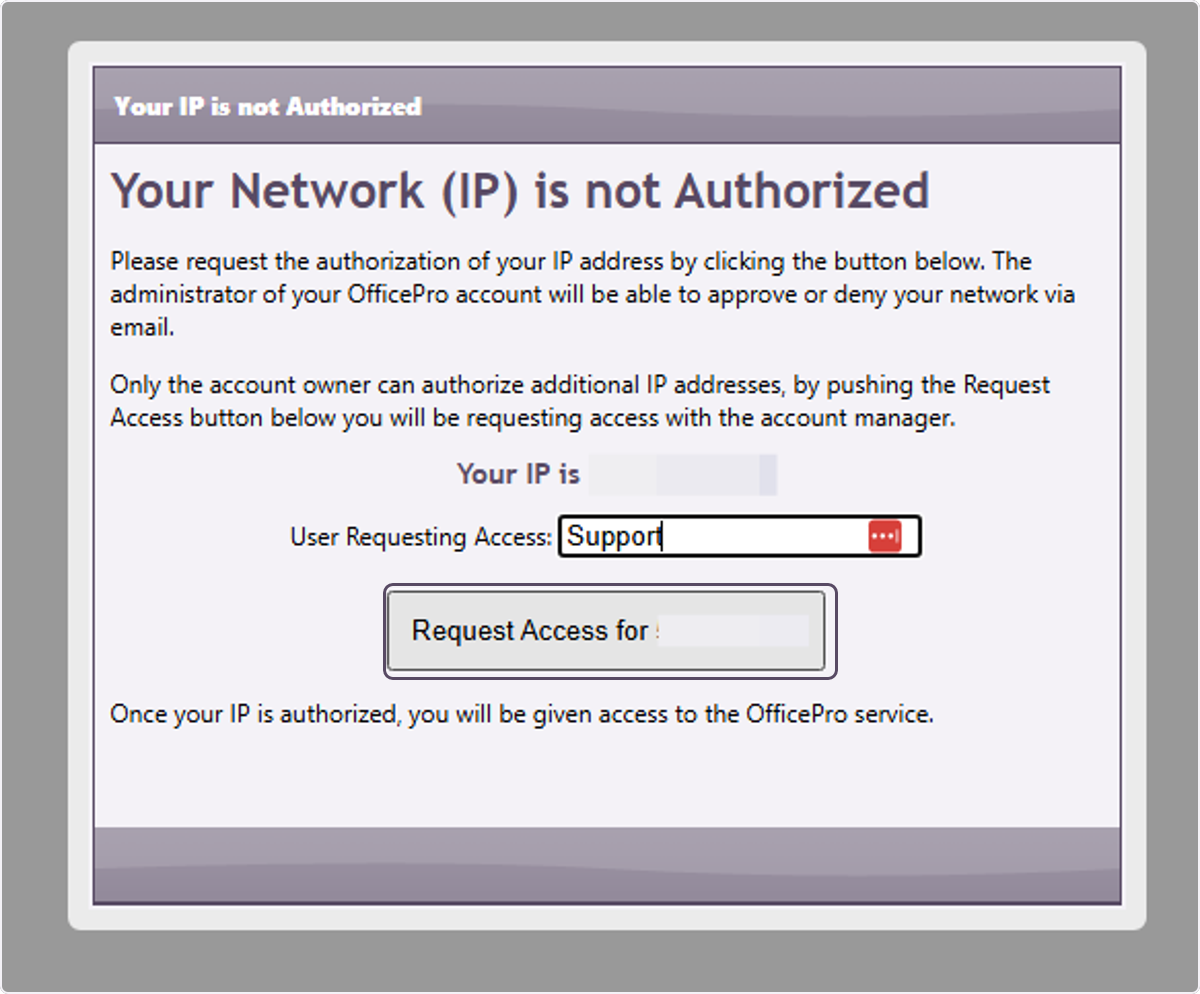
Logging into the OfficeProLogging into the OfficeProAccessing the Login Page- Open your preferred web browser. Log in at the Practice Level Authorize your IPCreation Date: Mar 20, 2026 Created By: Tucker Meager # OfficePro Practice Level LoginTo Log in to the OfficePro Service you can access one of our main service URLS: https://OfficePro.NaturaeSoft.com https://Secure.NaturaeSoft.com https://beta.NaturaeSoft.com - beta use only Practice Level Login Input your Practice Name and PracticePass provided to you in your login email. IP Restrictions Your administrator may have enabled IP restrictions preventing access from un authorized networks. If you are accessing the service from a new location you will be prompted to request authorization from your administrator. Please provide a name and click request access. An email will sent to the account administrator for approval. Once approved you will automatically be redirected tot eh user login page. 1. Enter "Your Practice Name" to identify what practice's servic you are logging in to use.
2. Enter the "Practice Pass" that you were provided for your account.
3. Click on Log On to Practice
4. Click on Request Access for your IP address.
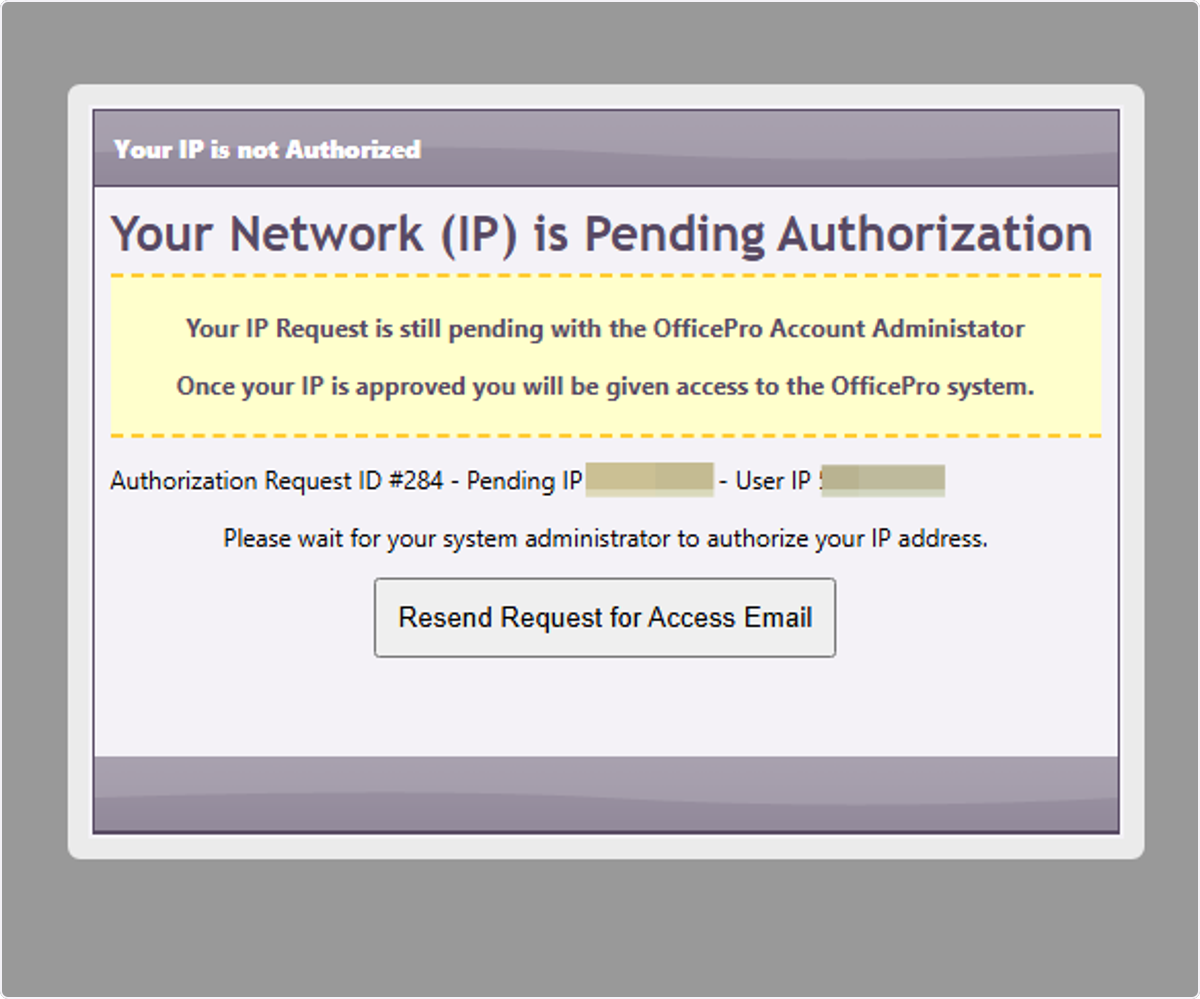
5. Click on Your Network (IP) is Pending Authorization…
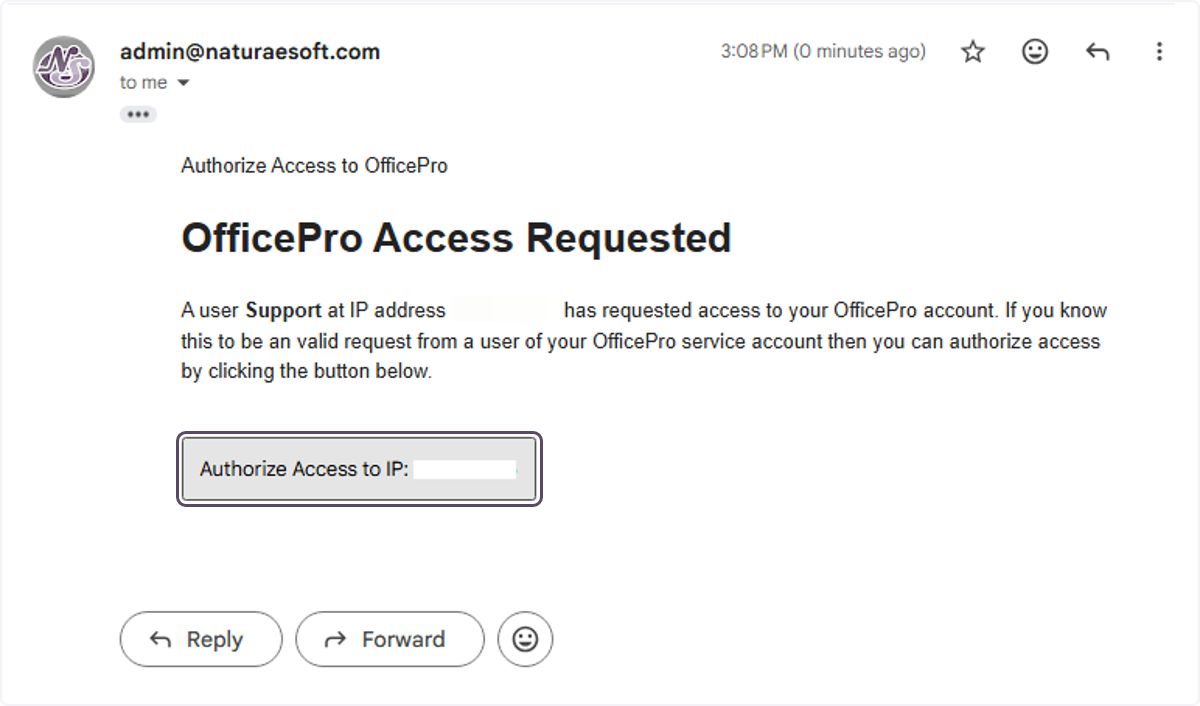
# Your Administrators MailYour account admin will receive the email and have to click on Authorize Access to IP: {Your IP} to enable the network for access. 6. Your account admin will receive the email and have to click on Authorize Access to IP: {Your IP} to enable the network for access.
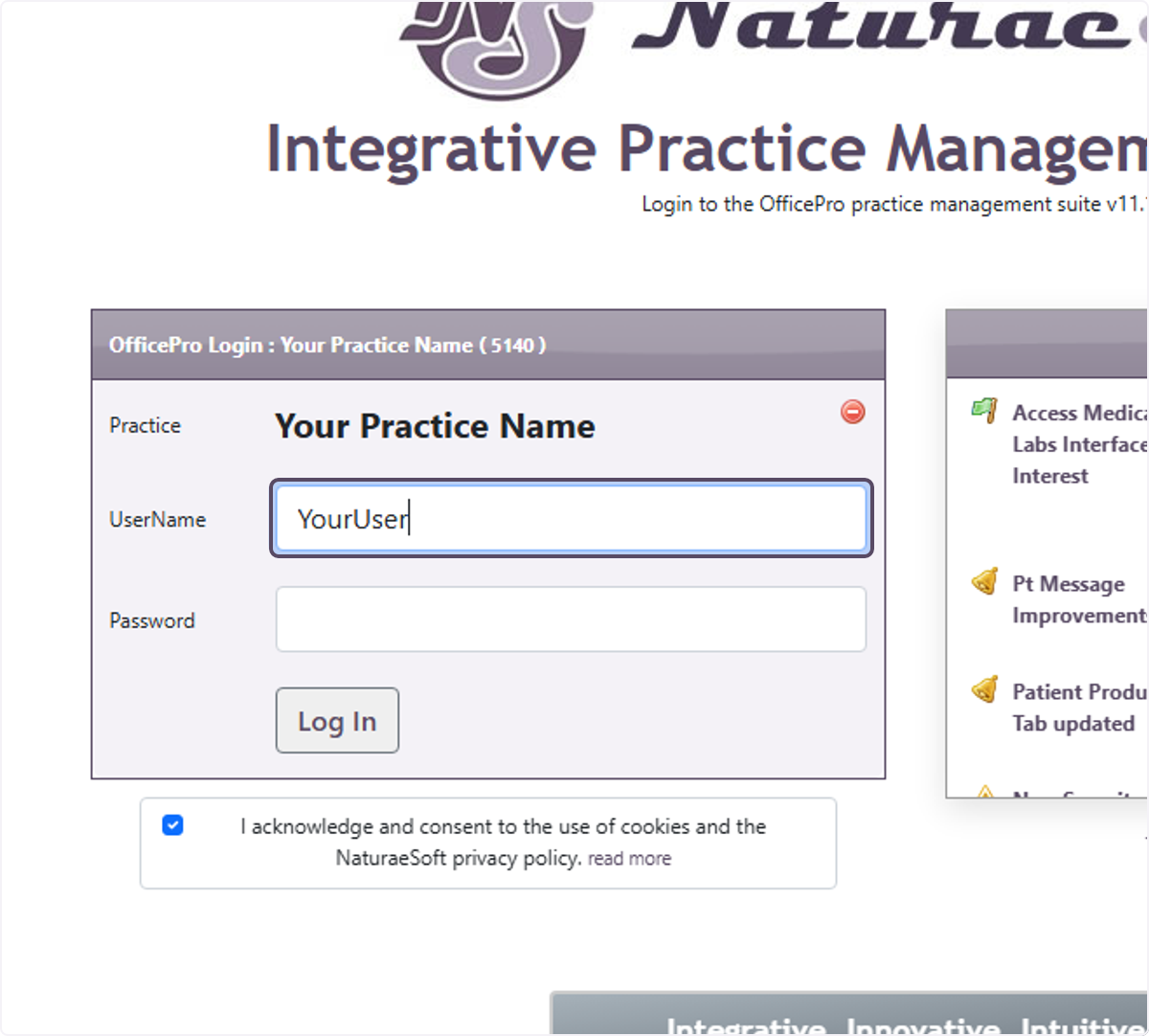
# OfficePro User Level LoginOnce the IP Is Authorized you will be redirected automatically to the User login process. 7. Enter your username and password as provided by your account admin.
ℹ️ Troubleshooting Login IssuesIf you forget your password, please ask your administrator to reset your password for access.Ensure that your internet connection is stable.Check for any browser updates or try a different browser if you encounter issues. ℹ️ Security TipsAlways log out after your session to protect your information.Use a strong, unique password for your account. # Congratulations! You are now logged into OfficePro!Practice Level Login-Input your Practice Name and PracticePass provided to you in your login email. IP RestrictionsYour administrator may have enabled IP restrictions preventing access from un authorized networks. If you are accessing the service from a new location you will be prompted to request authorization from your administrator. Please provide a name and click request access. An email will sent to the account administrator for approval. Once approved you will automatically be redirected tot eh user login page. User Level LoginOnce you have logged in at the practice level a cookie will be saved allowing you to go directly to the user login page. To login you will need you User Name and Password provided to you by your administrator. Entering Your Credentials- Input your username in the designated field. Troubleshooting Login Issues- If you forget your password, please ask your administrator to reset your password for access. Security Tips- Always log out after your session to protect your information. |
|
|
| 23 |
How do I send an Email to all of my patients?How do I send an Email to all of my patients?Problem: You want to send an email to all of your patients but can't find how to do this in OfficePro. Background: The OfficePro suite is designed for practice management and not really marketing. So all emails that OfficePro sends to your patients are patient-specific. There is no function for sending an email to all of your patients. But of course, you can still send emails to your patients using your email client or marketing service such as Constant Contact. OfficePro can provide you with a list of email addresses of your patients for sending. Solution: Option 1 To access a list of email addresses in OfficePro you can do one of the following. On the OfficePro Admin Home page on the left hand column. You will see an email box. If you click on the bar, the following email options will appear: If you click the view Email List option from the email menu you will get a list of all of your patient's email addresses. You can then click the Email All Patients link at the top right. If you do not have very many addresses the link will trigger your browser to open the default mail client with the email addresses already populated into the BCC field of the email draft. If you have a large number of emails on file then the system will prompt you with a selection box you can use to copy and paste all of the emails on file into the BCC box of a new email in your email client. Option 2 You can also use the Export Patient function to export a CSV of all of your patients. Then simply filter the CSV using your favorite spreadsheet software (excel, numbers, sheets, etc...). This way you can come up with a targeted list for your email. For more on exporting the patient list see the following tutorial about the Add Ons, Export, and Logs tabs of the Admin General settings page. http://www.naturaesoft.com/configuration.html#AddOns NOTE: Always use the BCC box otherwise your patient's email addresses will be shared with the other recipients of the email. Ignoring this could lead to a HIPAA violation, so be very careful about emailing your patients. |
|